This page outlines how to use MongoDB for VS Code Extension to connect to a MongoDB host. You can connect to a standalone, replica set, or sharded cluster host.
Note
MongoDB Atlas
If you need to create a MongoDB host, consider using MongoDB Atlas. Atlas is a cloud-hosted database-as-a-service which requires no installation, offers a free option to get started, and provides a copyable URI to easily connect VS Code Extension to your deployment.
To create a free cluster on Atlas, run the command MongoDB: Open Overview Page in the Visual Studio Code Command Palette and then click Create free cluster.
To create an Atlas cluster using a Terraform template included with VS Code Extension, see Create an Atlas Cluster from a Template using Terraform.
If you need to install VS Code Extension, see Install MongoDB for VS Code Extension for instructions.
Considerations
When connecting VS Code Extension to a replica set, use either the replica set SRV record or Replica Set Name when filling in your connection information. It is not recommended to connect directly to an individual replica set member.
You can't connect VS Code Extension directly to an analytics node.
VS Code Extension appends the
appNameconnection string option with a value ofmongodb-vscode <version>for all deployment connections.VS Code Extension automatically starts the MongoDB MCP Server when you connect to your MongoDB deployment. You can disable this behavior upon first connection, or at any time by using the mdb.mcp.server setting.
To learn more, see MongoDB MCP Server in MongoDB VS Code Extension.
Create a Connection
Select the method you want to use to connect to your deployment using the selector option at the top of the page. VS Code Extension provides three options to connect to your deployment:
Connection Method | Description |
|---|---|
Connect with Connection String | This method is faster and easier than using the advanced connection settings. Use this option if your deployment is hosted on Atlas or you already have a connection string for a deployment available. |
Advanced Connection Settings | This method lets you build a connection string with a form. Use this option if you need to customize the connection string and want to see available connection options. |
Atlas CLI | This method lets you connect using existing Atlas CLI configurations. Use this option if you want to connect to an Atlas deployment and have installed the Atlas CLI. |
Note
To specify where VS Code Extension connections are saved, use the Default Connection Saving Location setting.
VS Code Extension uses the VS Code API to store and encrypt connection strings and credentials. To learn more about how VS Code encrypts connections, see the VS Code API documentation.
When you provide a connection string, VS Code Extension supports most Connection String Options supported by MongoDB.
Obtain your connection string.
You can use either the Standard Connection String Format or the DNS Seedlist Connection Format.
To obtain the connection string for an Atlas cluster:
Navigate to your Atlas Clusters view.
Click Connect for your desired cluster.
Click Connect with MongoDB Compass.
Copy the provided connection string.
To learn how to format the connection string for a deployment which is not hosted on Atlas, see Connection String URI Format.
Open the Visual Studio Code Command Palette.
Open the Visual Studio Code Command Palette to paste your connection string and connect to your cluster. You can open the Command Palette in one of the following ways:
Select the MongoDB icon from the left side menu bar in VSCode.
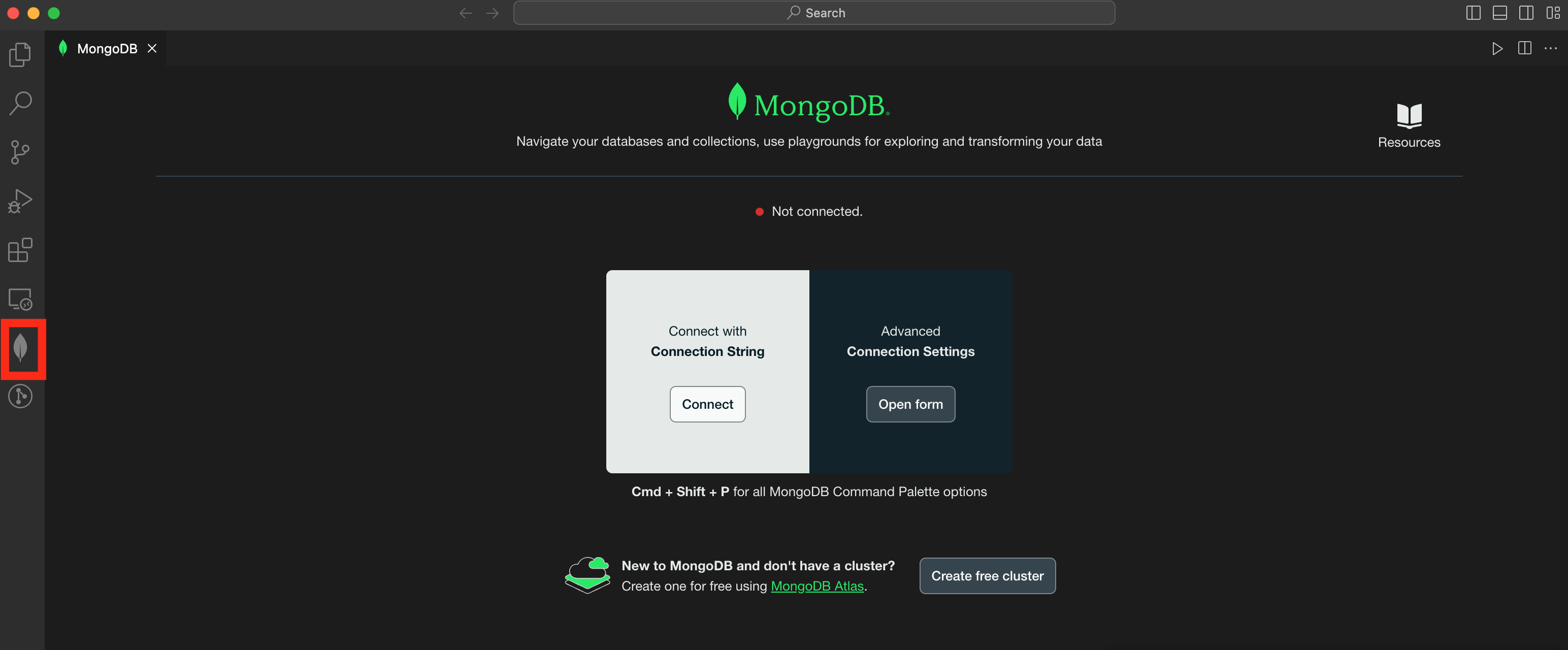
Expand the Connections pane in the left navigation if it is collapsed.
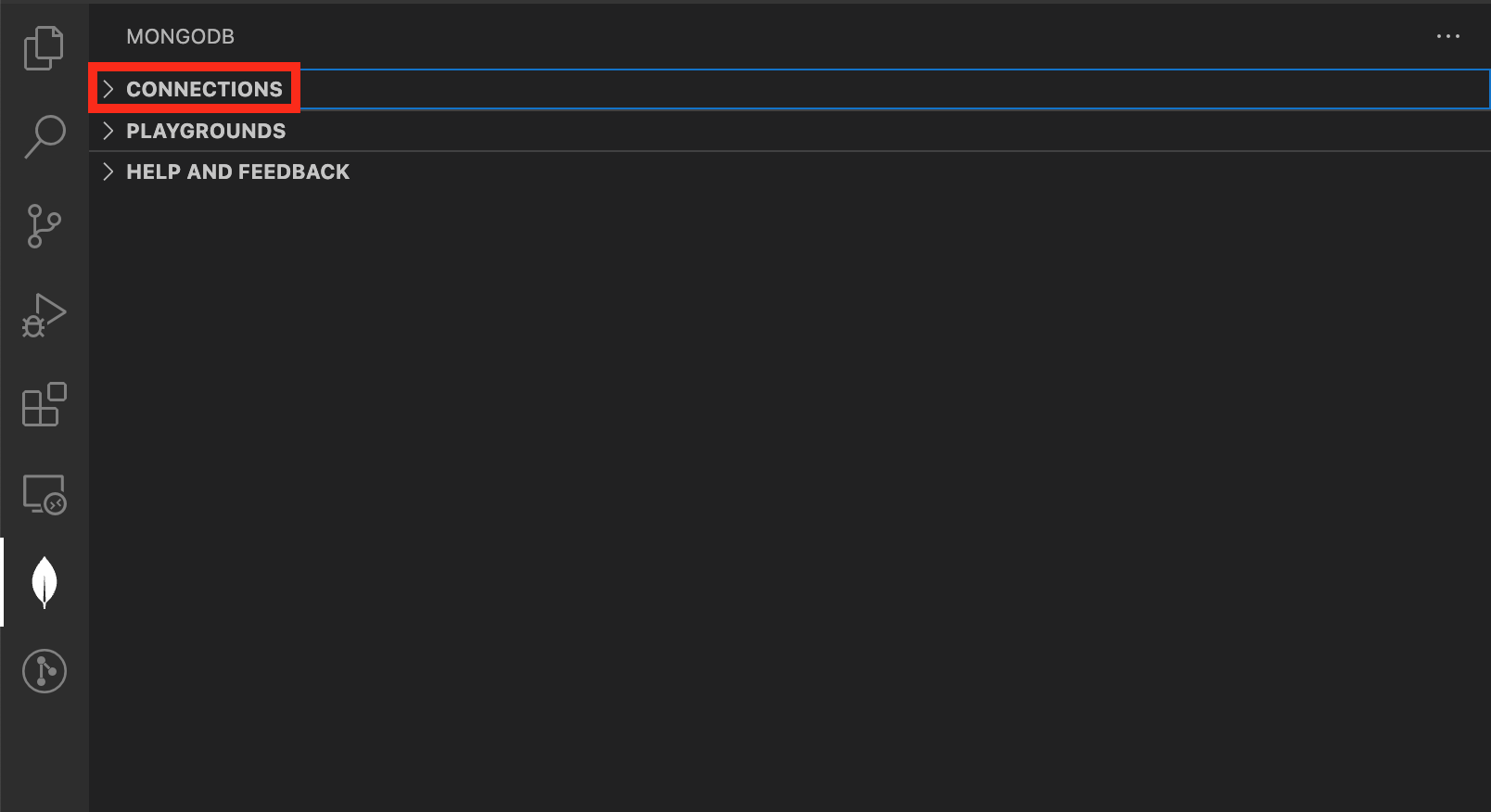
Click the More Actions menu (...) and select Add MongoDB Connection with Connection String....

Perform the action described in the following table for your operating system and method:
Operating SystemMethodActionsAny
Visual Studio Code Menu
View > Command Palette
MacOS
Keyboard Shortcut
Press
Command+Shift+PWindows and Linux
Keyboard Shortcut
Press
Control+Shift+PFrom the Command Palette, select MongoDB: Open Overview Page.
Tip
Enter
mongodbin the Command Palette to display all of the VS Code Extension commands you can use.In the Overview page, click Connect under the Connect with Connection String.
Perform the action described in the following table for your operating system and method:
Operating SystemMethodActionsAny
Visual Studio Code Menu
View > Command Palette
MacOS
Keyboard Shortcut
Press
Command+Shift+PWindows and Linux
Keyboard Shortcut
Press
Control+Shift+PFrom the Command Palette, select MongoDB: Connect with Connection String....
Tip
Enter
mongodbin the Command Palette to display all of the VS Code Extension commands you can use.
Paste your connection string into the Command Palette.
Important
If your deployment requires authentication, ensure that you update the connection string with credentials of a database user for your deployment. The connection might succeed without these credentials, but you won't be able to interact with data in your deployment.
Connect to Atlas Stream Processing
New in version 1.50.
You can use VS Code Extension to connect to Atlas Stream Processing by providing a Stream Processing Workspace (SPW) connection string.
For details on how to configure Atlas Stream Processing, see Manage Stream Processing Workspaces.
Paste in an SPW connection string
To obtain an SPW connection string login to your Atlas account. Click Stream Processing from the left-hand navigation and then select a Stream Processing Workspace. Click Connect and choose MongoDB for VSCode from the Choose a Connection Method page of the connect dialog.
Tip
For full details on using and configuring Atlas Stream Processing, see Atlas Stream Processing.
The following code block is an example of SPW connection string:
mongodb://user1:password1@atlas-stream-xxxxxxxxxxxxxxxxxxxxxxxx-yyyyy.virginia-usa.a.query.mongodb.net/?authSource=admin&readPreference=primary&ssl=true&directConnection=true
Once you are connected, the stream connection displays under the Connections pane:

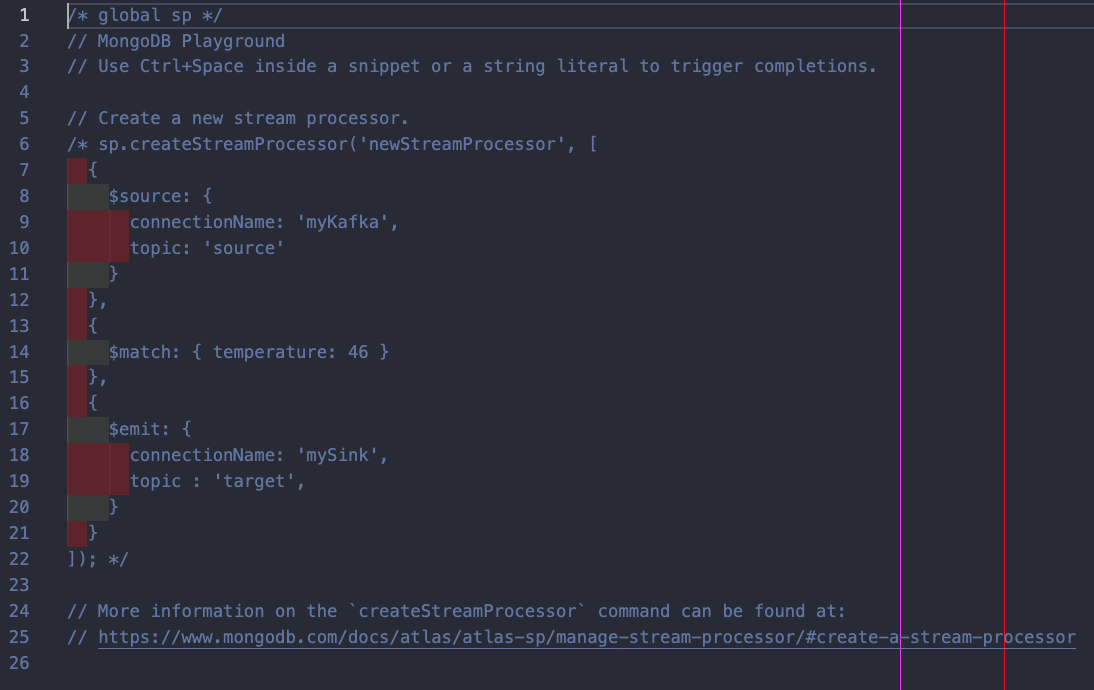
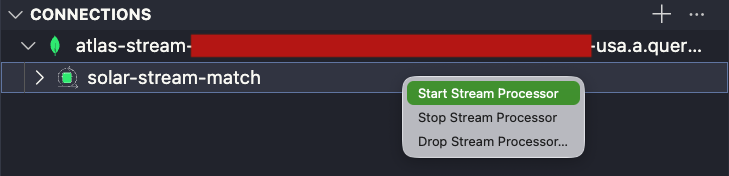
Create a Stream Processor You can create new Stream Processors from the VS Code Extension Connections pane.
Right click over your Stream Processing connection.
From the menu, select Add streamProcessor. A Stream Processor JavaScript file will open for you to fill in.
Once you have filled in your streamProcessor JavaScript Playground file, click over the Play button at the top level of your VS Code Extension space.
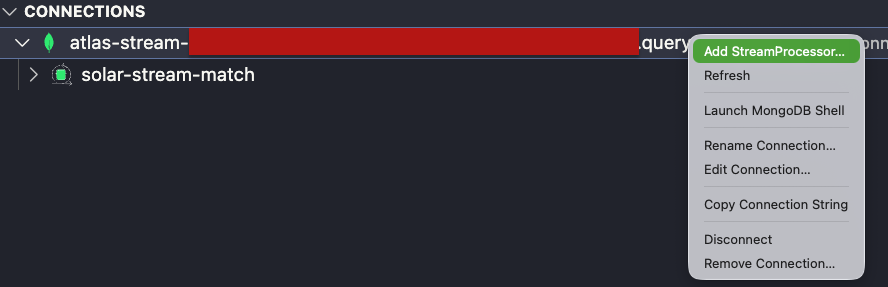
Activate a Connection
You can connect VS Code Extension to only one deployment at a time. To change the active connection to a different deployment, or to connect to a deployment from which you were disconnected:
Launch MongoDB Shell
You can connect the MongoDB Shell or legacy mongo shell to your active deployment.
Considerations
The shell that VS Code Extension uses to connect to your deployment is determined by the Shell setting in your extension settings. You can choose either the MongoDB Shell or the legacy
mongoshell.The path to your selected shell must exist in your system's
PATH. If it does not exist in yourPATH, the operation errors.
Procedure
To connect the shell to your active deployment:
In the VS Code Extension Connections list, right-click your active deployment.
Select Launch MongoDB Shell.
VS Code Extension opens the Terminal window in VS Code and launches the shell connected to your selected deployment.
Edit a Connection
Copy a Connection
You can copy a connection string from an existing Visual Studio Code connection.
Rename a Connection
To rename a connection to a deployment in VS Code Extension:
Disconnect from a Deployment
VS Code Extension provides two methods to disconnect from a deployment. You can:
Disconnect with the Command Palette.
Disconnect from the MongoDB view in the Activity Bar.
Disconnecting from a MongoDB instance closes the VS Code Extension connection to the active instance. You must reconnect to interact with data in your deployment again.
Remove a Connection
VS Code Extension provides two methods to remove a connection to a deployment from Visual Studio Code. You can:
Remove a connection from the MongoDB view in the Activity Bar.
Remove a connection with the Command Palette.
Important
Removing a connection from Visual Studio Code removes it both from the current workspace and from Visual Studio Code globally.
This page outlines how to use MongoDB for VS Code Extension to connect to a MongoDB host. You can connect to a standalone, replica set, or sharded cluster host.
Note
MongoDB Atlas
If you need to create a MongoDB host, consider using MongoDB Atlas. Atlas is a cloud-hosted database-as-a-service which requires no installation, offers a free option to get started, and provides a copyable URI to easily connect VS Code Extension to your deployment.
To create a free cluster on Atlas, run the command MongoDB: Open Overview Page in the Visual Studio Code Command Palette and then click Create free cluster.
To create an Atlas cluster using a Terraform template included with VS Code Extension, see Create an Atlas Cluster from a Template using Terraform.
If you need to install VS Code Extension, see Install MongoDB for VS Code Extension for instructions.
Considerations
When connecting VS Code Extension to a replica set, use either the replica set SRV record or Replica Set Name when filling in your connection information. It is not recommended to connect directly to an individual replica set member.
You can't connect VS Code Extension directly to an analytics node.
VS Code Extension appends the
appNameconnection string option with a value ofmongodb-vscode <version>for all deployment connections.VS Code Extension automatically starts the MongoDB MCP Server when you connect to your MongoDB deployment. You can disable this behavior upon first connection, or at any time by using the mdb.mcp.server setting.
To learn more, see MongoDB MCP Server in MongoDB VS Code Extension.
Create a Connection
Select the method you want to use to connect to your deployment using the selector option at the top of the page. VS Code Extension provides three options to connect to your deployment:
Connection Method | Description |
|---|---|
Connect with Connection String | This method is faster and easier than using the advanced connection settings. Use this option if your deployment is hosted on Atlas or you already have a connection string for a deployment available. |
Advanced Connection Settings | This method lets you build a connection string with a form. Use this option if you need to customize the connection string and want to see available connection options. |
Atlas CLI | This method lets you connect using existing Atlas CLI configurations. Use this option if you want to connect to an Atlas deployment and have installed the Atlas CLI. |
Note
To specify where VS Code Extension connections are saved, use the Default Connection Saving Location setting.
VS Code Extension uses the VS Code API to store and encrypt connection strings and credentials. To learn more about how VS Code encrypts connections, see the VS Code API documentation.
Open the VS Code Extension Overview page.
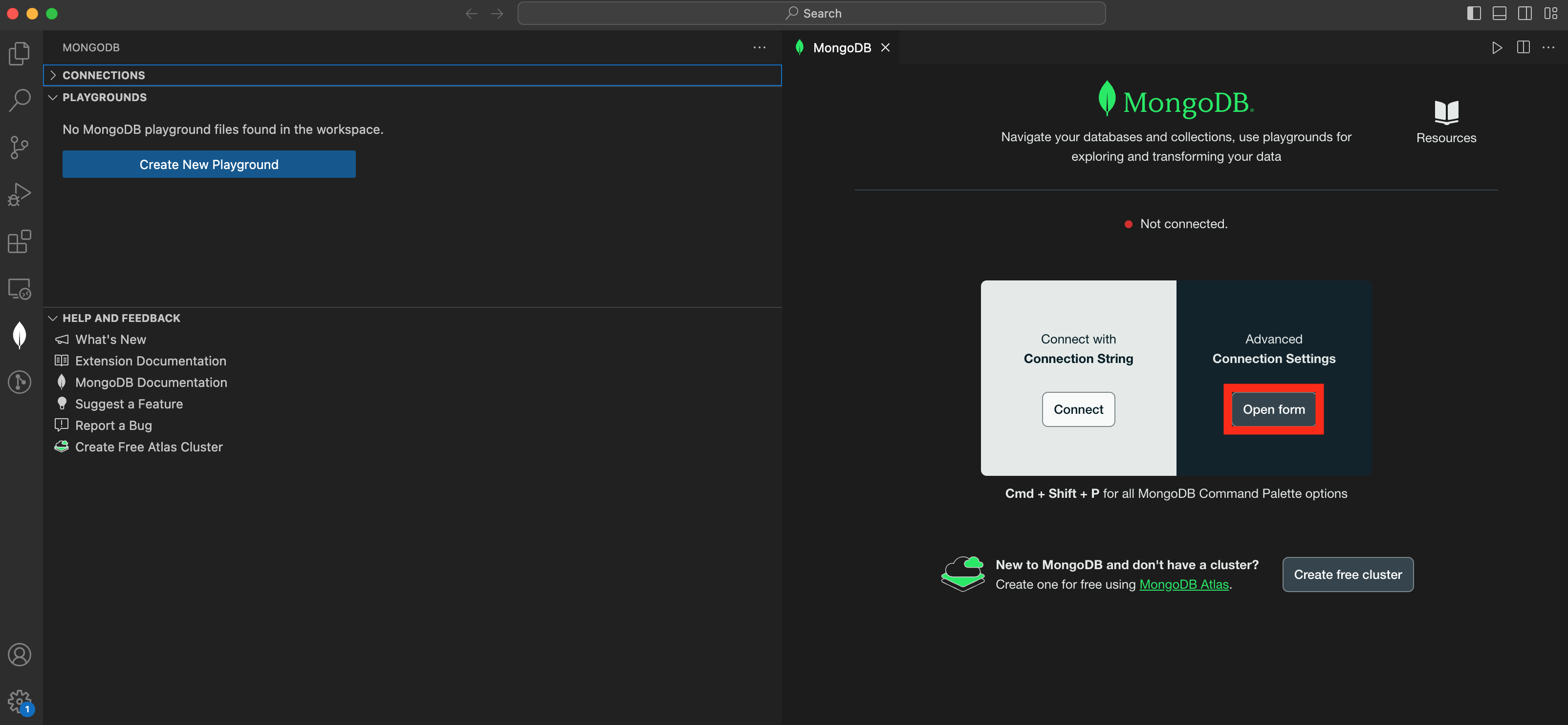
You can use the the MongoDB view or the Command Palette to open the overview page:
Expand the Connections pane in the left navigation if it's collapsed.
Click the More Actions menu (...), then click Add MongoDB Connection to open the VS Code Extension Overview page.
Perform the action described in the following table for your operating system and method:
Operating SystemMethodActionsAny
Visual Studio Code Menu
View > Command Palette
MacOS
Keyboard Shortcut
Press
Command+Shift+PWindows and Linux
Keyboard Shortcut
Press
Control+Shift+PFrom the Command Palette, select MongoDB: Open Overview Page.
Tip
Enter
mongodbin the Command Palette to display all of the VS Code Extension commands you can use.
Enter your connection information.
Important
VS Code Extension does not support the following connection options:
CSFLE In-Use Encryption
Kerberos Authentication
The General tab contains the options Connection Type and Authentication. Use the following instructions to configure your connections options:
Connection Type
To configure the Connection Type option, select the type of connection for your MongoDB deployment:
For a Standalone, specify the following:
Hostname of the machine where the deployment is running.
If you are running your deployment locally, this value is
localhost. If you are connecting to an Atlas cluster, you can get your hostname from your cluster detail view in Atlas.If you are not sure of your hostname, contact your Database Administrator for information.
Port on which the deployment is running.
By default, a standalone deployment operates on port
27017. For more information on the default ports MongoDB operates on, see Default MongoDB Port.If you are not sure of the port where your deployment operates, contact your Database Administrator for information.
Click to specify additional hostnames and associated ports.
For a replica set, specify the following:
Hostname of the machine where the deployment is running.
If you are running your deployment locally, this value is
localhost. If you are connecting to an Atlas cluster, you can get your hostname from your cluster detail view in Atlas.If you are not sure of your hostname, contact your Database Administrator for information.
Port on which the deployment is running.
For information on the default ports MongoDB operates on, see Default MongoDB Port.
If you are not sure of the port where your deployment operates, contact your Database Administrator for information.
Optional. Replica Set Name as specified in the replica set configuration.
Click to specify additional hostnames and associated ports.
For an SRV Record, specify the Hostname. You do not need to specify a port.
SRV connection strings have a prefix of mongodb+srv:. If you are using an SRV connection string, you do not need to include mongodb+srv in your Hostname.
For example:
If the following is your SRV connection string for your MongoDB deployment:
mongodb+srv://<username>:<password>@gettingstarted-7q2cs.mongodb.net/test
Then, in VS Code Extension, you would specify your Hostname as:
gettingstarted-7q2cs.mongodb.net
Authentication
Configure authentication using the Authentication option if your deployment requires it. Atlas clusters use Username / Password authentication.
Select your authentication method for specific instructions:
Select Username / Password if the deployment uses MongoDB-CR, SCRAM-SHA-1, or SCRAM-SHA-256 as its authentication mechanism.
Provide the Username, Password, and Authentication Database to authenticate the user.
Select OIDC if the deployment uses OpenID Connect as its authentication mechanism.
Provide the following information:
Field | Description |
|---|---|
Username | Optional. OpenID Connect username. |
Auth Code Flow Redirect URI | Optional. Specify a URI where the identity provider redirects you after authentication. The URI must match the configuration of the Identity Provider. The default is |
Consider Target Endpoint Trusted | Optional. Allows connecting to a target endpoint that is not in the list of endpoints that are considered trusted by default. Only use this option when connecting to servers that you trust. |
Enable Device Authentication Flow | Optional. When the Show Device Auth Flow Checkbox setting is enabled, Visual Studio Code can provide you with a URL and code to finish authentication. |
This is a less secure authentication flow that can be used as a fallback when browser-based authentication is unavailable.
Select X.509 if the deployment uses X.509 as its authentication mechanism. If selected, you must provide the Username to authenticate the user.
If you are using Atlas-managed certificates , your username must be prefaced by "CN=" per RFC 2253. For example, the username "X509User" must be provided as "CN=X509User".
Select LDAP if the deployment uses LDAP as its authentication mechanism. If selected, you must provide the Username and Password to authenticate the user.
Select AWS IAM if the deployment uses AWS IAM as its authentication mechanism.
Field | Necessity | Description |
|---|---|---|
AWS Access Key Id | Required | Unique identifier associated with your AWS account. |
AWS Secret Access Key | Optional | Long-term credential associated with the access key ID. |
AWS Session Token | Optional | A temporary security credential that is returned by the AWS Security Token Service (STS). |
If you are connecting to your deployment using TLS/SSL or an SSH tunnel, refer to the following tabs for specific instructions:
This option directs VS Code Extension to connect to your MongoDB deployment via TLS/SSL. You can select one of the following SSL options:
Option | Description | ||||||||
|---|---|---|---|---|---|---|---|---|---|
System CA/Atlas Deployment | Connect to MongoDB Atlas. | ||||||||
Server Validation | VS Code Extension validates the identity of the deployment. If selected, you must provide:
| ||||||||
Server and Client Validation | The deployment performs certificate validation from its clients and VS Code Extension validates the identity of the deployment. If selected, you must provide:
| ||||||||
Unvalidated (Insecure) | Use TLS/SSL without any identity validation. |
Tip
For production use, your MongoDB deployment should use valid certificates generated and signed by a single certificate authority. You or your organization can generate and maintain an independent certificate authority, or use certificates generated by a third-party TLS/SSL vendor.
This option directs VS Code Extension to connect to your MongoDB deployment via an SSH tunnel. The tunnel automatically starts when you connect to MongoDB and stops when you disconnect.
In the SSH Tunnel dropdown, choose either a password or an identity file to provide authentication. Once you select your identification method, specify the following options:
SSH Hostname | Enter the bastion (jumpbox) hostname. This is the unique identifier (Fully Qualified Domain Name, or FQDN) for the machine to be accessed. |
SSH Tunnel Port | Provide the port used for the SSH connection. This defaults to 22, the standard port for SSH. |
SSH Username | The username of the profile to log into on the remote system. This will be the user for which you want to establish the SSH connection. |
SSH Identity File | Select the file from which the identity (private key) for SSH public key authentication is read. Unix or OS X: If using OpenSSH, identity files are found in the
On Windows, the location of the identify files depends on your choice of SSH client, such as PuTTY. |
SSH Passphrase | If your private key is encrypted, provide the passphrase used to decrypt your private key (stored in the specified identity file). A passphrase provides an extra layer of security for an SSH connection. |
SSH Password | The password used to secure the SSH connection. This is required if you are not using an identity file. |
To use an SSH tunnel through a bastion host, the SSH configuration on the bastion host must allow TCP port forwarding; i.e., the AllowTcpForwarding directive in the /etc/ssh/sshd_config file is set to yes. If AllowTcpForwarding is not set to yes, set to yes and restart the SSH daemon (sudo service sshd restart).
Instead of creating the SSH tunnel using VS Code Extension, you can also create the tunnel manually from the command line:
ssh -L <local_port>:<mongodb_hostname>:<mongodb_port> \ <user>@<bastion_hostname> -fN
Example
If you have a deployment running on hostname-a.com on port 27017, and the bastion host is hostname-b.com with user name ec2-user, you can build the tunnel via
ssh -L 27000:hostname-a.com:27017 ec2-user@hostname-b.com -fN
Using this SSH tunnel, you can now connect VS Code Extension (or the mongo shell) to localhost:27000 to connect to the deployment running on hostname-a.com.
Note
You cannot connect to a replica set via an SSH tunnel. VS Code Extension cannot establish a connection to multiple servers across the same SSH tunnel.
Optional: Specify additional options in the Advanced tab.
You can select the Read Preference, which specifies how VS Code Extension directs read operations:
Read Preference Mode | Description |
|---|---|
Primary | Default mode. All operations read from the current replica set primary. |
Primary Preferred | In most situations, operations read from the primary but if it is unavailable, operations read from secondary members. |
Secondary | All operations read from the secondary members of the replica set. |
Secondary Preferred | In most situations, operations read from secondary members but if no secondary members are available, operations read from the primary. |
Nearest | Operations read from member of the replica set with the least network latency, irrespective of the member's type. |
If omitted, defaults to Primary. To learn more about read preferences, see Read Preference.
You can specify additional MongoDB connection behavior with the following options:
Field | Description |
|---|---|
Replica Set Name | (Optional) Name of replica set. |
Default Authentication Database | (Optional) Authentication database used when authSource is not specified. For more information, see Authentication Options. |
URI Options | Additional options to customize your connection. You specify these options as key-value pairs, and Visual Studio Code automatically adds the key-value pairs to the connection string. For more information, see Connection String Options. |
Connect to Atlas Stream Processing
New in version 1.50.
You can use VS Code Extension to connect to Atlas Stream Processing by providing a Stream Processing Workspace (SPW) connection string.
For details on how to configure Atlas Stream Processing, see Manage Stream Processing Workspaces.
Paste in an SPW connection string
To obtain an SPW connection string login to your Atlas account. Click Stream Processing from the left-hand navigation and then select a Stream Processing Workspace. Click Connect and choose MongoDB for VSCode from the Choose a Connection Method page of the connect dialog.
Tip
For full details on using and configuring Atlas Stream Processing, see Atlas Stream Processing.
The following code block is an example of SPW connection string:
mongodb://user1:password1@atlas-stream-xxxxxxxxxxxxxxxxxxxxxxxx-yyyyy.virginia-usa.a.query.mongodb.net/?authSource=admin&readPreference=primary&ssl=true&directConnection=true
Once you are connected, the stream connection displays under the Connections pane:
Create a Stream Processor You can create new Stream Processors from the VS Code Extension Connections pane.
Right click over your Stream Processing connection.
From the menu, select Add streamProcessor. A Stream Processor JavaScript file will open for you to fill in.
Once you have filled in your streamProcessor JavaScript Playground file, click over the Play button at the top level of your VS Code Extension space.
Activate a Connection
You can connect VS Code Extension to only one deployment at a time. To change the active connection to a different deployment, or to connect to a deployment from which you were disconnected:
Launch MongoDB Shell
You can connect the MongoDB Shell or legacy mongo shell to your active deployment.
Considerations
The shell that VS Code Extension uses to connect to your deployment is determined by the Shell setting in your extension settings. You can choose either the MongoDB Shell or the legacy
mongoshell.The path to your selected shell must exist in your system's
PATH. If it does not exist in yourPATH, the operation errors.
Procedure
To connect the shell to your active deployment:
In the VS Code Extension Connections list, right-click your active deployment.
Select Launch MongoDB Shell.
VS Code Extension opens the Terminal window in VS Code and launches the shell connected to your selected deployment.
Edit a Connection
Copy a Connection
You can copy a connection string from an existing Visual Studio Code connection.
Rename a Connection
To rename a connection to a deployment in VS Code Extension:
Disconnect from a Deployment
VS Code Extension provides two methods to disconnect from a deployment. You can:
Disconnect with the Command Palette.
Disconnect from the MongoDB view in the Activity Bar.
Disconnecting from a MongoDB instance closes the VS Code Extension connection to the active instance. You must reconnect to interact with data in your deployment again.
Remove a Connection
VS Code Extension provides two methods to remove a connection to a deployment from Visual Studio Code. You can:
Remove a connection from the MongoDB view in the Activity Bar.
Remove a connection with the Command Palette.
Important
Removing a connection from Visual Studio Code removes it both from the current workspace and from Visual Studio Code globally.
This page outlines how to use MongoDB for VS Code Extension to connect to a MongoDB host. You can connect to a standalone, replica set, or sharded cluster host.
Note
MongoDB Atlas
If you need to create a MongoDB host, consider using MongoDB Atlas. Atlas is a cloud-hosted database-as-a-service which requires no installation, offers a free option to get started, and provides a copyable URI to easily connect VS Code Extension to your deployment.
To create a free cluster on Atlas, run the command MongoDB: Open Overview Page in the Visual Studio Code Command Palette and then click Create free cluster.
To create an Atlas cluster using a Terraform template included with VS Code Extension, see Create an Atlas Cluster from a Template using Terraform.
If you need to install VS Code Extension, see Install MongoDB for VS Code Extension for instructions.
Considerations
When connecting VS Code Extension to a replica set, use either the replica set SRV record or Replica Set Name when filling in your connection information. It is not recommended to connect directly to an individual replica set member.
You can't connect VS Code Extension directly to an analytics node.
VS Code Extension appends the
appNameconnection string option with a value ofmongodb-vscode <version>for all deployment connections.VS Code Extension automatically starts the MongoDB MCP Server when you connect to your MongoDB deployment. You can disable this behavior upon first connection, or at any time by using the mdb.mcp.server setting.
To learn more, see MongoDB MCP Server in MongoDB VS Code Extension.
Create a Connection
Select the method you want to use to connect to your deployment using the selector option at the top of the page. VS Code Extension provides three options to connect to your deployment:
Connection Method | Description |
|---|---|
Connect with Connection String | This method is faster and easier than using the advanced connection settings. Use this option if your deployment is hosted on Atlas or you already have a connection string for a deployment available. |
Advanced Connection Settings | This method lets you build a connection string with a form. Use this option if you need to customize the connection string and want to see available connection options. |
Atlas CLI | This method lets you connect using existing Atlas CLI configurations. Use this option if you want to connect to an Atlas deployment and have installed the Atlas CLI. |
Note
To specify where VS Code Extension connections are saved, use the Default Connection Saving Location setting.
VS Code Extension uses the VS Code API to store and encrypt connection strings and credentials. To learn more about how VS Code encrypts connections, see the VS Code API documentation.
The Atlas CLI allows you to connect to both your local and Atlas deployments from MongoDB for VsCode. Before beginning, install the Atlas CLI.
Connect from the Atlas CLI.
In your terminal, run atlas auth login to authenticate with your Atlas login credentials. To learn more, see Connect from the Atlas CLI.
Connect to Atlas Stream Processing
New in version 1.50.
You can use VS Code Extension to connect to Atlas Stream Processing by providing a Stream Processing Workspace (SPW) connection string.
For details on how to configure Atlas Stream Processing, see Manage Stream Processing Workspaces.
Paste in an SPW connection string
To obtain an SPW connection string login to your Atlas account. Click Stream Processing from the left-hand navigation and then select a Stream Processing Workspace. Click Connect and choose MongoDB for VSCode from the Choose a Connection Method page of the connect dialog.
Tip
For full details on using and configuring Atlas Stream Processing, see Atlas Stream Processing.
The following code block is an example of SPW connection string:
mongodb://user1:password1@atlas-stream-xxxxxxxxxxxxxxxxxxxxxxxx-yyyyy.virginia-usa.a.query.mongodb.net/?authSource=admin&readPreference=primary&ssl=true&directConnection=true
Once you are connected, the stream connection displays under the Connections pane:
Create a Stream Processor You can create new Stream Processors from the VS Code Extension Connections pane.
Right click over your Stream Processing connection.
From the menu, select Add streamProcessor. A Stream Processor JavaScript file will open for you to fill in.
Once you have filled in your streamProcessor JavaScript Playground file, click over the Play button at the top level of your VS Code Extension space.
Activate a Connection
You can connect VS Code Extension to only one deployment at a time. To change the active connection to a different deployment, or to connect to a deployment from which you were disconnected:
Launch MongoDB Shell
You can connect the MongoDB Shell or legacy mongo shell to your active deployment.
Considerations
The shell that VS Code Extension uses to connect to your deployment is determined by the Shell setting in your extension settings. You can choose either the MongoDB Shell or the legacy
mongoshell.The path to your selected shell must exist in your system's
PATH. If it does not exist in yourPATH, the operation errors.
Procedure
To connect the shell to your active deployment:
In the VS Code Extension Connections list, right-click your active deployment.
Select Launch MongoDB Shell.
VS Code Extension opens the Terminal window in VS Code and launches the shell connected to your selected deployment.
Edit a Connection
Copy a Connection
You can copy a connection string from an existing Visual Studio Code connection.
Rename a Connection
To rename a connection to a deployment in VS Code Extension:
Disconnect from a Deployment
VS Code Extension provides two methods to disconnect from a deployment. You can:
Disconnect with the Command Palette.
Disconnect from the MongoDB view in the Activity Bar.
Disconnecting from a MongoDB instance closes the VS Code Extension connection to the active instance. You must reconnect to interact with data in your deployment again.
Remove a Connection
VS Code Extension provides two methods to remove a connection to a deployment from Visual Studio Code. You can:
Remove a connection from the MongoDB view in the Activity Bar.
Remove a connection with the Command Palette.
Important
Removing a connection from Visual Studio Code removes it both from the current workspace and from Visual Studio Code globally.