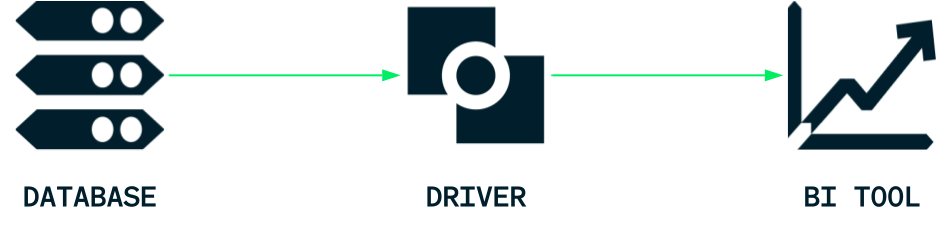
The MongoDB SQL Interface lets you query your MongoDB data using standard SQL-based BI tools like Tableau, Power BI, and DBeaver.
To get started, use the following process:
Setup the server and schema.
Follow the instructions in Server Setup to configure your database to accept SQL connections. The setup process depends on your deployment type:
Atlas dedicated cluster: Enable the SQL Interface on the cluster, then generate a schema with the MongoDB SQL Schema Builder CLI. This is the recommended path for most Atlas connections.
Atlas federated database instance: Setup your federated database instance and generate schema for collections you wish to query with SQL.
Enterprise Advanced (EA): Configure your self-managed database and generate a SQL schema for your collections using the MongoDB SQL Schema Builder CLI. To learn more, see the MongoDB SQL Schema Builder README.
Setup the driver.
Follow the instructions in Driver Setup to install the correct driver (JDBC or ODBC) on your client machine.
Connect your BI tool.
Follow the instructions in Connect Your BI Tool to configure your specific BI tool to connect to your MongoDB database.