When you paste a connection string into the MongoDB Compass connection form,
Compass shows credentials in plaintext by default. To hide your
credentials and secure your connection string, use the
protectConnectionStrings option.
About This Task
When protectConnectionStrings is enabled, users cannot perform the following
actions:
Edit the connection string in the Compass connection form.
Copy the connection string in the Compass interface.
See the credentials when exporting a query.
Procedure
To secure your connection string, enable the protectConnectionStrings
option.
You can set the protectConnectionStrings option in either:
The Compass Settings panel
The command line
Compass Settings Panel
Open MongoDB Compass Settings
Click the gear icon on the left column of the Compass home screen to open MongoDB Compass Settings.

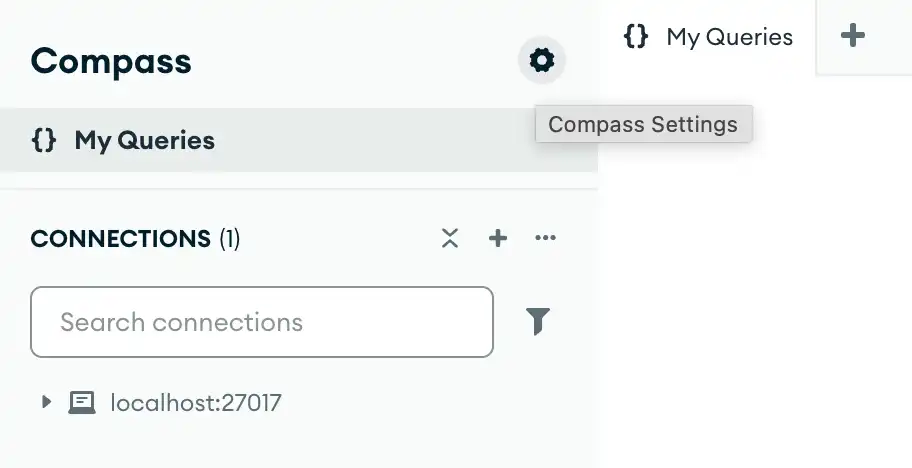
Alternatively, you can use keyboard shortcuts to open the Settings panel:
Windows / Linux:
Ctrl+,Mac:
⌘+,
Compass opens a dialog box where you can configure your MongoDB Compass settings.
Command Line Example
The following command starts Compass from the command line and sets
the --protectConnectionStrings option:
<path-to-Compass-executable> --protectConnectionStrings
Note
The name and filepath of the Compass executable depend on your operating system.
Configuration File Example
You can specify the Compass configuration file in either EJSON
or YAML format. The following configurations set the
protectConnectionStrings option to true:
EJSON
{ "protectConnectionStrings": true }
YAML
protectConnectionStrings: true
Learn More
To learn more about the MongoDB Compass configuration file, see Configuration File Settings.