The MongoDB Connector for Business Intelligence for Atlas and on-premises reaches end-of-life (EOL) and will no longer be supported after September 2026. For all new projects, we recommend using the new MongoDB SQL Interface to connect to Atlas or Enterprise Advanced deployments. The SQL Interface offers improved performance, a simplified setup, and enhanced features. To learn more, see Connect With SQL.
This tutorial demonstrates how to connect to MongoDB Connector for BI using Qlik Sense.
Prerequisites
Create a 64-bit system Data Source Name (DSN).
Procedure
2
Create a Connection to a MongoDB Database Using BI Connector
Click Create a New App
Give your app a name and open it.
Click Add Data.
Select ODBC from the list of data sources.
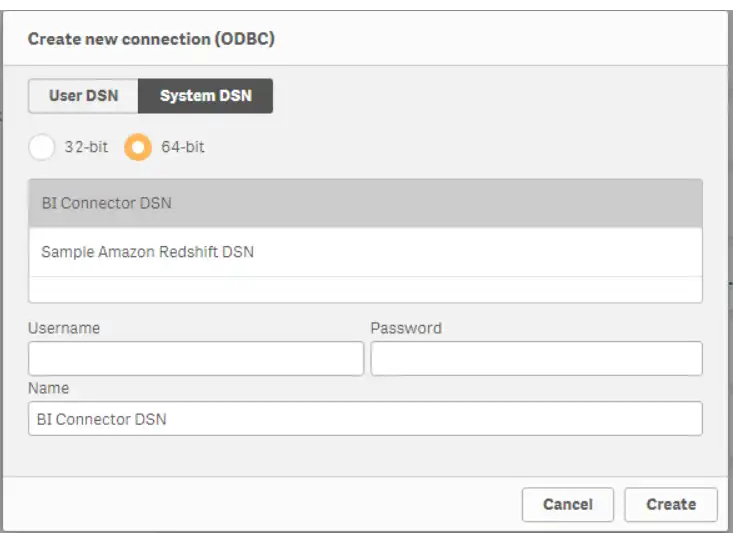
In the Create New Connection window, select the ODBC data source you created in Step 1.
![Screenshot of Qlik list of data sources]() click to enlarge
click to enlargeNote
The username and password values you specified in your DSN override any values you enter in this dialog window, so you can leave those fields blank.
The database and tables listed in your schema file should appear in your app's overview.